Neruna Cloud Features
Maintained once in the portal. Available on every workstation.
Neruna Cloud handles the management around Neruna Desktop. How each feature looks in the program itself, we link on neruna.org.
People, groups and devices
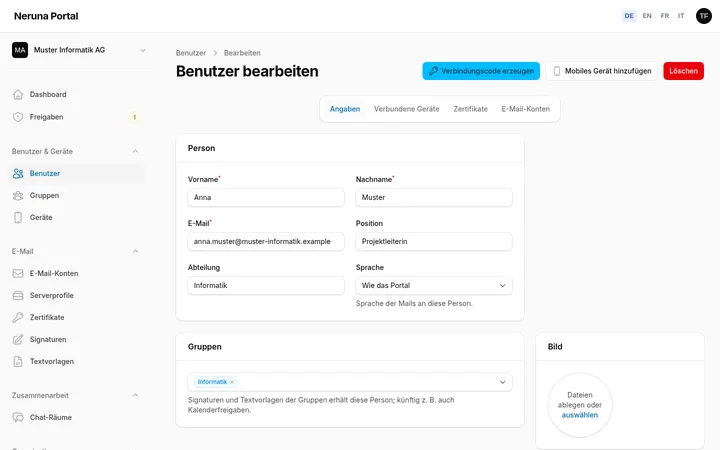
Add staff with a profile – name, position, department, phone, photo. Signatures and the company directory are built from it. Groups map departments and teams.
- A connection code per person, the PIN comes separately
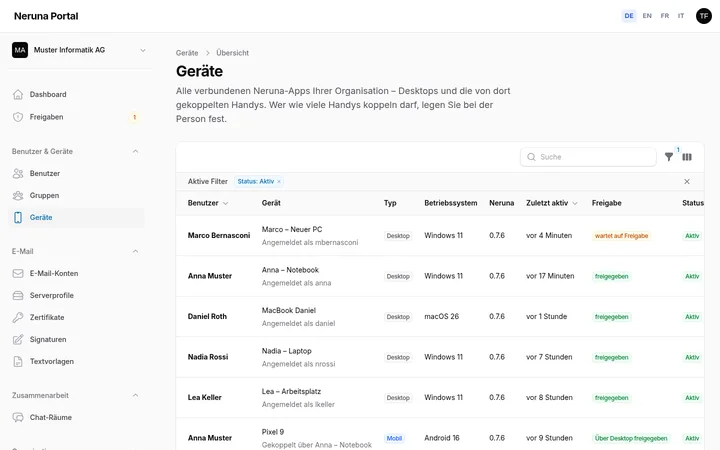
- Device overview with operating system, user and version
- Block lost devices in the portal at once
- Company data and logo centrally for signatures
Phones: pair instead of set up
Staff pair their phone themselves at their connected Neruna Desktop: scan the QR code, enter the PIN – the organisation's accounts, certificates, signatures and text templates are on the phone. The desktop re-encrypts them for the phone; no further approval in the portal is needed, and the server cannot read any of it. Without a desktop, people get the QR code straight from the portal (“Add mobile device”).
- Set per person how many phones are allowed – none by default
- Phones count towards the licence's device limit
- All devices of the organisation on one page, blocked with one click
- Neruna for Android is in a closed test – preview on request
Approvals and notifications
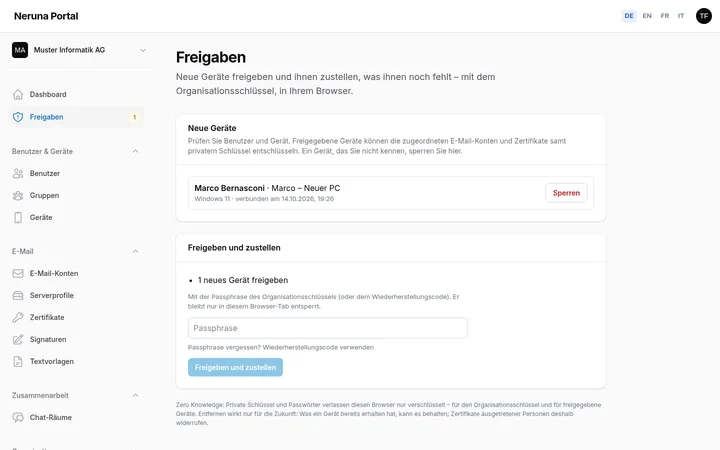
A new or restored computer only gets accounts and certificates once you approve it. Everything that needs the organisation key is on one page: check devices, block unknown ones, approve and deliver with the passphrase. A number in the menu and the dashboard show what is open – and a mail if you like.
- Approvals, missing deliveries and changed server profiles in one step
- Mails to portal access or a shared mailbox: new devices and phones, waiting approvals, expiring certificates
- Each event is reported once
Groups
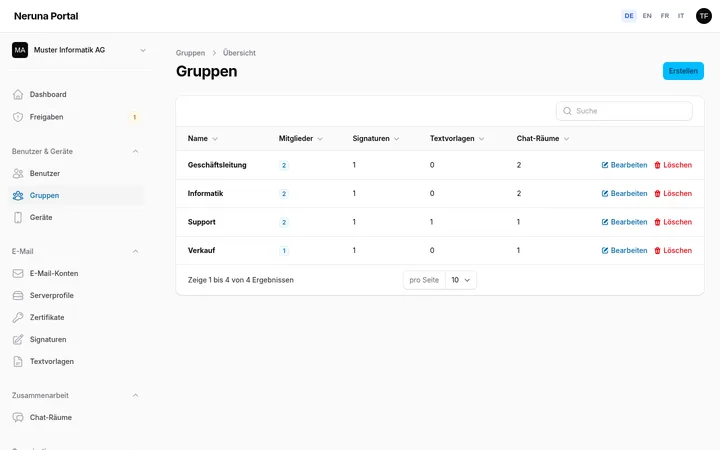
Assign signatures, text templates and chat rooms to specific groups – management gets different templates than support.
Central signatures
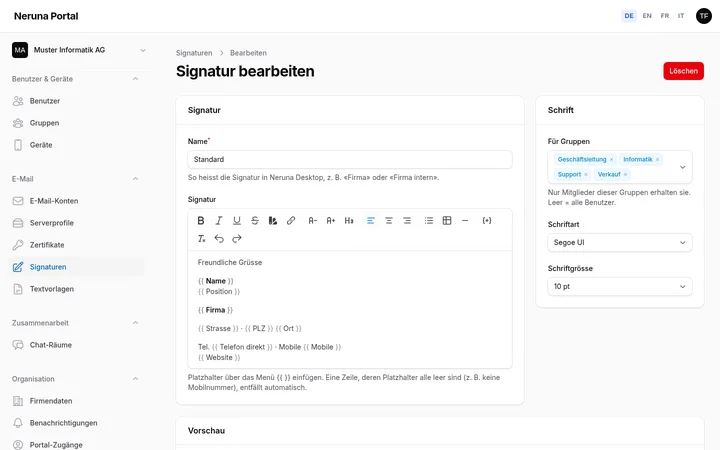
Consistent signatures for everyone, with placeholders for name, position, phone and company data. When a profile changes, the signature is up to date on every device at once – without anyone setting anything up.
- Formatting, logo and tables
- Empty lines drop out automatically
- Assignable per group
Text templates
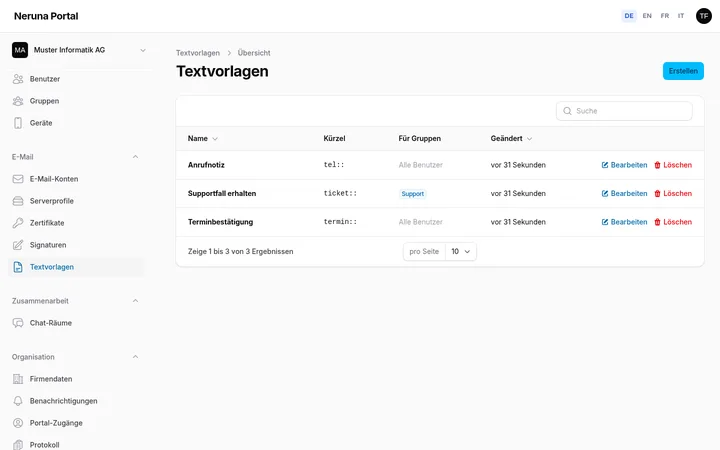
Call notes, standard replies, confirmations – maintained centrally, inserted at the cursor on every workstation with a click or a shortcut like “tel::”.
- Also as fill-in tables
- Assignable per group
Mail accounts and server profiles
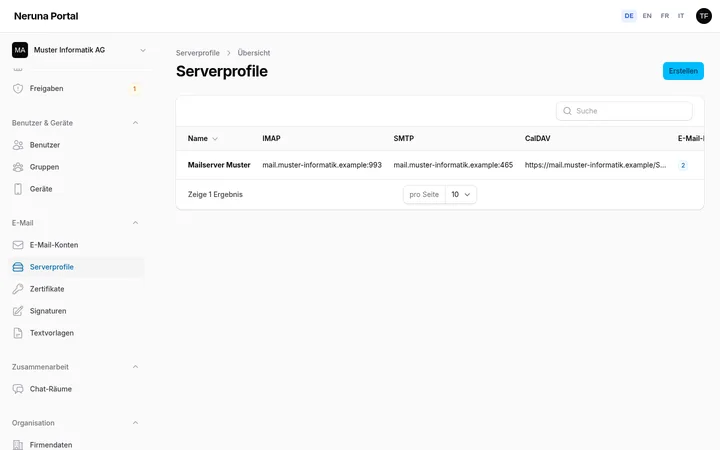
Set up mailboxes once in the portal and assign people – Neruna Desktop sets them up automatically on approved devices, aliases included. Server profiles keep your mail server's IMAP, SMTP, CalDAV and CardDAV in one place.
- Password optional – without one, the app asks the person once
- Passwords encrypted in the browser, server settings signed
- Change a profile for all accounts with one click
S/MIME certificates
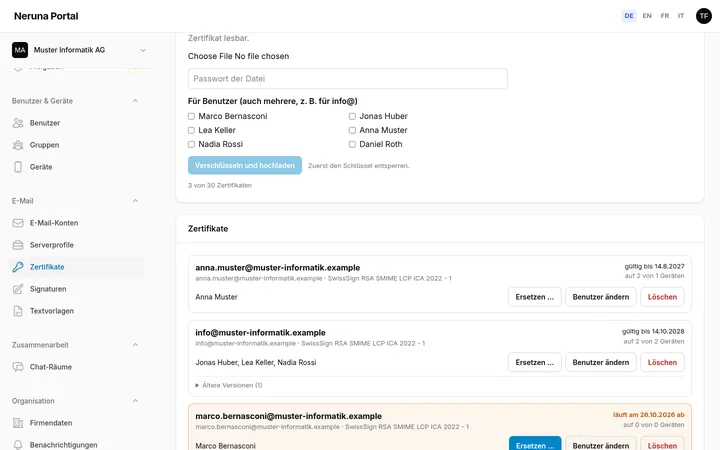
Upload certificates once and assign people – one for info@ to several, too. Private keys are encrypted in the browser and only decrypted on approved devices.
- Expiry at a glance: orange 30 days ahead, red once expired – also on the dashboard and by mail
- “Replace”: the renewed certificate for the same people; the old one stays for older mail
- Without the passphrase or recovery code nobody can hand out certificates – not even Neruna
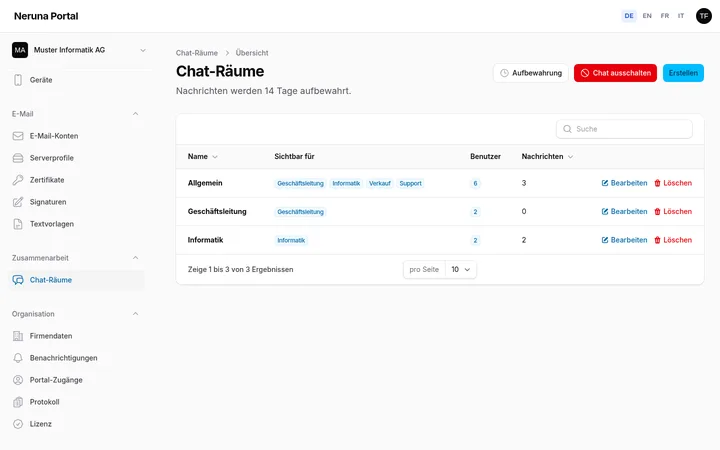
Team chat
Rooms per group, private messages and online status right in Neruna Desktop. You decide the retention – or switch the chat off entirely.
- Retention from 1 day to 3 months
- Switched off: nothing stored, existing messages deleted
Audit log, access and two-factor
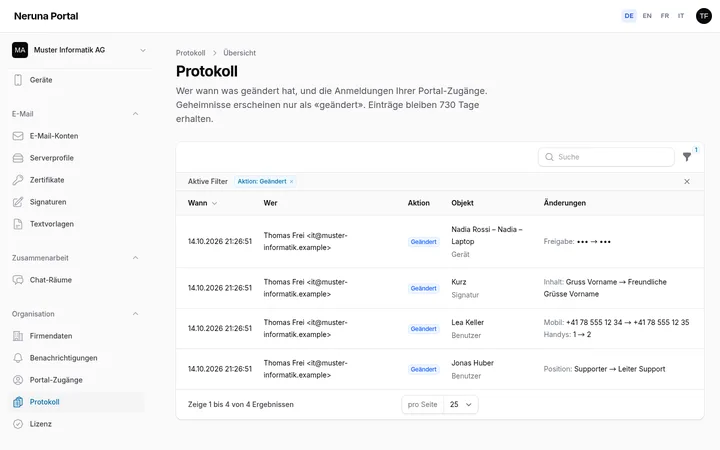
If several people run the portal, each access gets full rights or only its areas – for example only the signatures. The audit log records who changed what when: sign-ins, new users, approvals, assignments. Secrets only show as “changed”.
- Two-factor sign-in with an authenticator app required for all access
- Rights per access: full or single areas
- Audit log with filters by action, type and period
Personal backup
Everyone backs up their own settings encrypted in the vault – new computer, connect, restore. With a note and a preview, up to 20 versions. The server can read none of it.
Backup and restore in Neruna Desktop: neruna.orgReady for your first workstation?
30 days free, up to 5 people – no credit card.